The directory your C++ program uses when running is the current working directory (CWD). This is not always the same as:
- the directory where the .exe is located
- the project folder
- the source folder
Understanding this difference is essential when debugging using command line arguments.
📌 What determines the C++ project’s executing directory when running inside Visual Studio (Debug/Run)
By default, Visual Studio 2026 sets the working directory to the location ponted by the $(ProjectDir) macro.
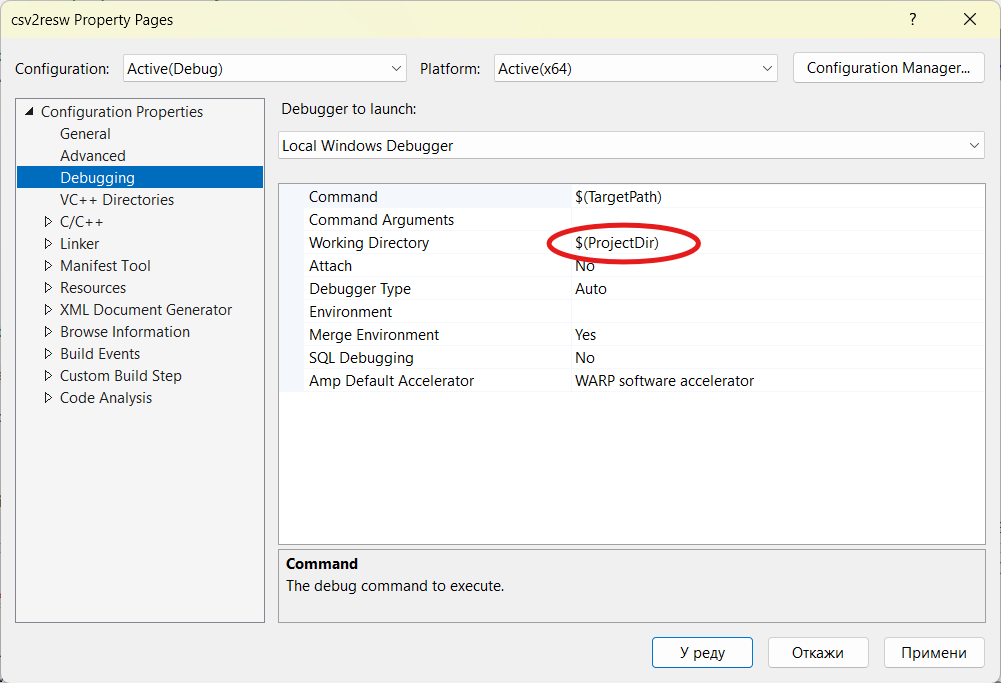
A more natural setup should be if it points to your executable directories:
<project folder>\x64\Debug\
or
<project folder>\x64\Release\
We suggest that as soon as you create a new starter project, and if it uses command line arguments that are required when debugging from the IDE environment – make the necessary changes and set the macro $(OutDir) for the working directory:
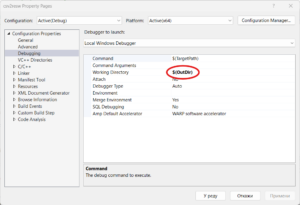
Believe me, it will make your developer’s life easier.
This means:
std::ifstream in("myfile.txt");will look for:
MyProject\x64\Debug\myfile.txt
if you change default settings.
📌 How to check the executing directory at runtime
#include <iostream>
#include <filesystem>
int main() {
    std::cout << std::filesystem::current_path() << "\n";
}
This prints the exact working directory your program is using.
📌 How to change the working directory in Visual Studio
- Right‑click your project → Properties
- Go to Debugging
- Set Working Directory to something you want, for example:
$(ProjectDir)
or
$(SolutionDir)
or a custom folder.
This is the most reliable way to ensure your files are found if given by the command line arguments.
📌 How to get the directory where the executable is located
Sometimes you want the folder of the .exe, not the working directory.
Use this:
#include <windows.h>
#include <string>

std::string exeDir() {
    char path[MAX_PATH];
    GetModuleFileNameA(NULL, path, MAX_PATH);
    std::string full(path);
    return full.substr(0, full.find_last_of("\\/"));
}
This gives you the real executable directory, even if the working directory is different.
📌 Summary of the three important directories
| Directory | Meaning | Example |
| Working directory | Where file I/O happens by default | MyProject/ |
| Executable directory | Where the .exe physically lives | x64/Debug/ |
| Project directory | Where .vcxproj is | MyProject/ |
These are not always the same.