Inserting JavaScript Code into WordPress Page(s)
There are four method for inserting JavaScript into WordPress page(s). This article is helping you to find out what should you do depending of your config.
Four Methods
To insert your JavaScript code into WordPress pages, you have several safe and professional options. The best method depends on whether you want the script:
- On one specific page
- all pages
- In the header or footer
- Or conditionally loaded
Below are the best approaches:
1. Insert JavaScript Into a Single Page (Quick & Simple)
Option A: Using the WordPress Block Editor (Gutenberg)
- Edit your page.
- Add a Custom HTML block.
- Paste your code inside:
<script>
// Your JavaScript here
console.log("Hello World");
</script>✔ Good for small scripts
❌ Not ideal for large or reusable code
2. Add JavaScript Site-Wide (Recommended Method)
The correct and professional way is to use functions.php
and enqueue the script.
Step 1: Upload Your JS File
Upload your file (example: myscript.js) to:
/wp-content/themes/your-theme/js/myscript.js
Step 2: Add This to functions.php
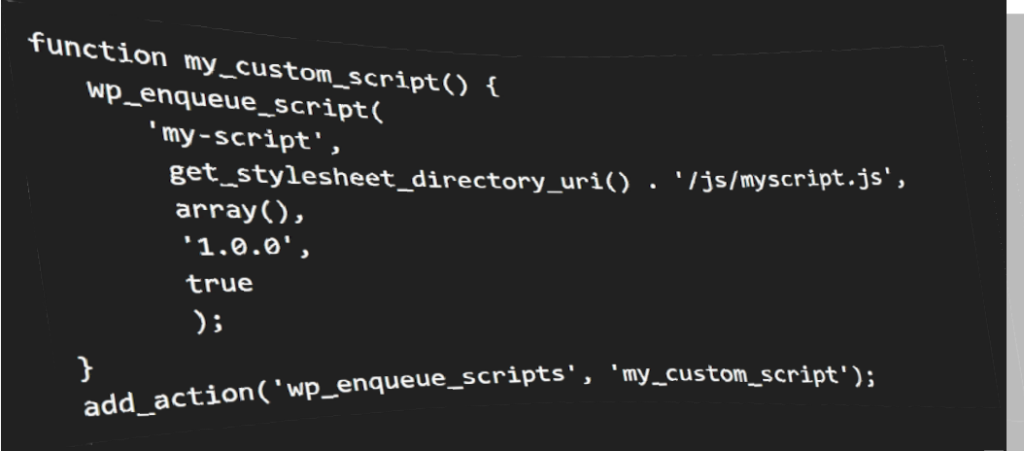
function my_custom_script() {
 wp_enqueue_script(
 'my-script',
 get_stylesheet_directory_uri() . '/js/myscript.js',
 array(),
 '1.0.0',
 true
 );
}
add_action('wp_enqueue_scripts', 'my_custom_script');
What this does:
- Loads your script properly
- Places it in the footer (
true) - Uses WordPress best practices
✔ Best method
✔ Clean
✔ Cache-friendly
✔ Safe from conflicts
3. Insert Script in Header or Footer (Without Editing Code)
Use a plugin like:
WPCodeInsert Headers and Footers
Steps:
- Install plugin
- Go to settings
- Paste your script into Header or Footer section
✔ No coding required
✔ Safe for beginners
4. Load JavaScript Only on Specific Pages
If you want script only on a specific page (example page ID 42):
function my_custom_script() {
 if (is_page(42)) {
 wp_enqueue_script(
 'my-script',
 get_stylesheet_directory_uri() . '/js/myscript.js',
array(),
 '1.0.0',
 true
 );
 }
}
add_action('wp_enqueue_scripts', 'my_custom_script');
You can also use:
if (is_page('contact')) { }⚠️ Important Notes
- ❌ Do NOT directly edit theme files unless using a child theme
- ❌ Avoid placing large JS inside HTML blocks
- ✔ Always use
wp_enqueue_script()for production sites - ✔ Clear cache after adding scripts
🔥 Best Method for You?
If you’ve been working with domains and web projects recently, we’d
recommend:
👉 Use enqueue method + child theme
This keeps your site professional and scalable.
If you’re using WP custom theme
If you’re using a custom theme, the correct and professional way is to use wp_enqueue_script() inside your theme. We’ll give you the cleanest and safest setup.
BEST METHOD (For Custom Theme)
1. Create a JS Folder in Your Theme
Go to:
/wp-content/themes/your-theme/
Create folder:
/js/
Add your file:myscript.js
2. Add This to functions.php
Open:
/wp-content/themes/your-theme/functions.php
Add:
function my_custom_script() {
 wp_enqueue_script(
 'my-script',
 get_template_directory_uri() . '/js/myscript.js',
 array(),
 '1.0.0',
 true
 );
}
add_action('wp_enqueue_scripts', 'my_custom_script');
🔎 Important Explanation
'my-script'→ unique handle nameget_template_directory_uri()→ correct for
custom (parent) theme- ‘1.0.0’ → version (important for cache control)
- true → loads script before (best practice)
Load Script Only On Specific Page (Optional)
If you want it only on page with slug contact:
function my_custom_script() {
 if (is_page('contact')) {
 wp_enqueue_script(
 'my-script',
 get_template_directory_uri() . '/js/myscript.js',
 array(),
 '1.0.0',
 true
 );
 }
}
add_action('wp_enqueue_scripts', 'my_custom_script');
⚡ If Your Script Uses jQuery
WordPress already includes jQuery. Load it properly like this:
wp_enqueue_script(
 'my-script',
 get_template_directory_uri() . '/js/myscript.js',
 array('jquery'),
 '1.0.0',
 true
);
And in your JS file:
jQuery(document).ready(function($) {
 console.log("jQuery loaded correctly");
});
🚨 Very Important
Make sure your theme’s footer.php contains:
<?php wp_footer(); ?>
And header.php contains:
<?php wp_head(); ?>
Without these, scripts will NOT load.
🏆 Professional Tip
If this is a long-term project, create a child theme even if it’s
custom.
That protects your changes from future updates.
If you are using Elementor
METHOD 1 (Recommended) — Enqueue Script for Elementor Pages
Even with Elementor, best practice is still wp_enqueue_script().
Add this to your theme’s functions.php:
function my_elementor_script() {
wp_enqueue_script(
'my-elementor-script',
get_template_directory_uri() . '/js/myscript.js',
array(),
'1.0.0',
true
);
}
add_action('wp_enqueue_scripts', 'my_elementor_script');
✔ Works on all Elementor pages
✔ Clean
✔ Cache-friendly
✔ Production-ready
METHOD 2 — Load Script ONLY on Elementor Pages
If you want it only when Elementor is used:
function my_elementor_script() {
if ( did_action( 'elementor/loaded' ) ) {
wp_enqueue_script(
'my-elementor-script',
get_template_directory_uri() . '/js/myscript.js',
array(),
'1.0.0',
true
);
}
}
add_action('wp_enqueue_scripts', 'my_elementor_script');
METHOD 3 — Add JavaScript Directly Inside Elementor Page
Option A: Use HTML Widget
- Edit page with Elementor
- Drag HTML widget
- Paste:
<script>
.addEventListener("DOMContentLoaded", function() {
 console.log("Elementor JS loaded");
});
</script>
✔ Quick
❌ Not ideal for large scripts
METHOD 4 — Use Elementor Custom Code (Best If You Have Pro)
If you use Elementor Pro:
- Go to Dashboard → Elementor → Custom Code
- Add New
- Paste your JS
- Choose:
- Location: Body End (recommended)
- Display Conditions: Entire Site or specific pages
✔ Very clean
✔ No theme editing
✔ Professional solution
⚠️ Important for Elementor
Elementor loads content dynamically.
If your script interacts with widgets, use this instead of DOMContentLoaded:
jQuery(window).on('elementor/frontend/init', function() {
 elementorFrontend.hooks.addAction('frontend/element_ready/global', function($scope){
 console.log("Elementor widget loaded");
 });
});
This prevents the classic:
“Script works on normal page but not in Elementor”
🎯 Best Setup For You
If you’re using a custom theme:
👉 Use enqueue method (Method 1)
👉 If Elementor Pro → use Custom Code panel